How to Use Klaviyo Flows AI to Build a Flow in Minutes
Klaviyo Flows AI builds a draft flow from a plain-English description. Go to Flows, click Create flow, choose Build your own, select Create with AI, describe the trigger, filters and messages you want, and click Generate draft. Then open the draft in the flow builder, edit it, test it, and set your messages to Live.
The click path is easy. The hard part is what comes before and after it. Building a welcome series, an abandoned cart flow and a post-purchase flow from a blank canvas means choosing triggers, setting delays, adding filters and deciding where the branches go. Many stores skip that work and run thin flows. A vague prompt also gives you a vague draft, and a draft that goes live untouched can send the wrong message to the wrong people.
This guide covers what Flows AI does, what you need before you start, and four steps: open the tool, write a prompt that works, review the draft, and launch and measure. Chromex Marketing builds and optimizes Klaviyo flows for ecommerce brands, so the advice focuses on what a flow needs to earn revenue, not just what the tool can generate.
What Flows AI does and what you need first
Flows AI is a shortcut for the structure of a flow. You describe the flow in natural language, and Klaviyo proposes a trigger, entry filters and a sequence of actions such as messages and time delays. You then refine the details yourself in the regular flow builder.
What the tool generates
A flow, which Klaviyo also calls an automation or drip campaign, is a series of messages triggered by customer behavior, such as joining a list or starting checkout. Flows AI drafts that skeleton. It is one feature inside Klaviyo's wider AI offering (K:AI), which also includes a marketing agent and a customer service agent. So yes, Klaviyo is a marketing platform with AI built in, but Flows AI is the part that builds flow structures.

Treat the output as a first draft, not a finished program. It saves you the setup work, not the thinking.
Flows AI gives you a structure to edit, not a flow that is ready to send.
What to have ready
Check these before you open the tool:
- A paid Klaviyo account. Klaviyo's help center says Flows AI is only available on paid accounts. Check Klaviyo's pricing page for what your plan includes.
- A connected store. Ecommerce triggers such as checkout started or placed order need your store data flowing into Klaviyo.
- A list and a sign-up form. Welcome flows need a list that people join.
- Your offer details. Know your discount, shipping terms and return policy, because you will put them in the prompt.
Step 1. Open the Flows AI builder
You reach Flows AI through the standard flow creation menu. It takes about a minute, and the option only appears if your account qualifies.
The click path
Follow these steps in Klaviyo:
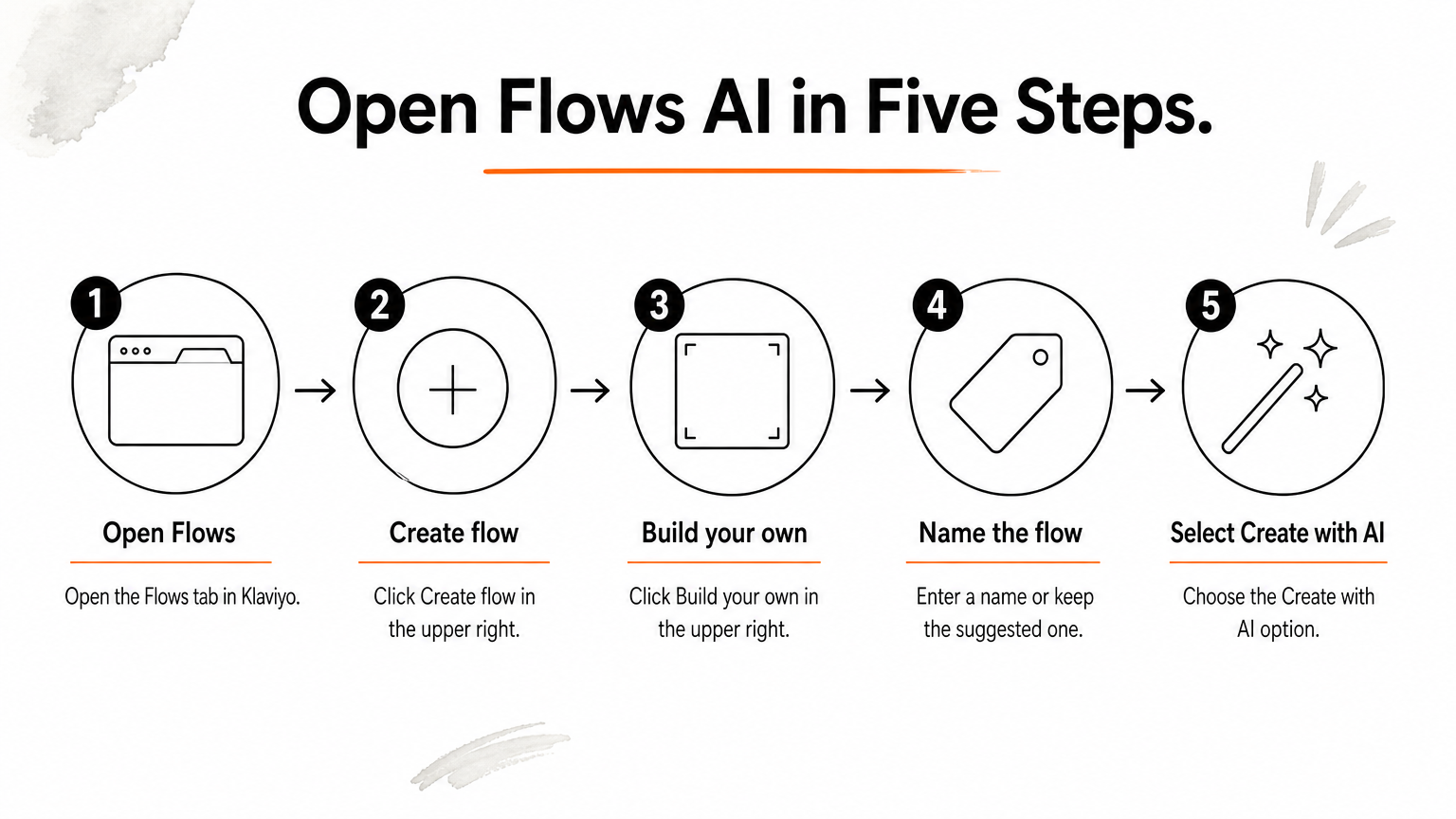
- Open the Flows tab.
- Click Create flow in the upper right.
- Click Build your own in the upper right.
- Enter a name for the flow, or keep the suggested one. Add tags if you want.
- Select Create with AI.
If you do not see Create with AI, the usual cause is the plan. Confirm that your account is paid before you go looking elsewhere.
Name and tag the flow
Pick a naming pattern now, because you will create more flows later. Something like "Abandoned Cart - Core" or "Welcome - 10% Offer" keeps the Flows list readable. Tags such as "revenue" or "lifecycle" help you filter once you have 15 or 20 flows.
The Create with AI option sits under Build your own, so start from Create flow, not from the template library.
Step 2. Write a prompt that gets a usable draft
Your prompt decides the quality of the draft. Describe who enters the flow, who is excluded, and what happens in what order. Specific instructions produce a structure you can use, and vague ones produce a generic sequence.
What to put in the description
Klaviyo says your description can include three things: how profiles enter the flow, any filters that decide who can enter, and the actions, such as messages and delays, and where they sit relative to each other. I would add two more. State the delay between each message in hours or days, and name any branch you want, such as splitting by whether the shopper used a discount code.
If you are not sure how to structure the flow, name the type, for example "abandoned cart flow", or start with a simple structure and expand it later in the builder.
Prompts you can paste
Replace the bracketed parts with your own details:
Abandoned cart: Trigger when someone starts checkout. Exclude anyone who has placed an order in the last 7 days. Send email 1 one hour after checkout starts, email 2 after 24 hours, and email 3 after 72 hours. Add a conditional split before email 3 so only people without a discount code see [10% off code].
Welcome series: Trigger when someone joins the [Newsletter] list. Send email 1 immediately with [welcome offer]. Wait 2 days, then send email 2 about our brand story. Wait 2 days, then send email 3 featuring bestsellers. Exit anyone who places an order.
Post-purchase: Trigger when someone places an order. Wait 3 days, then send a product usage email. Wait 14 days, then send a review request. Wait 30 days, then send a replenishment or cross-sell email for [product category].
These timings are starting points based on common practice, not Klaviyo rules. Adjust them to how quickly your customers buy and receive orders.
Name the trigger, the exclusions and the delay for every step, and the draft will need far less rework.
Step 3. Review and edit the draft in the builder
After you click Generate draft, a preview on the right shows the trigger, filters and structure the AI recommends. Read it critically. If it is wrong, revise your description and generate again, and only click Edit in builder when the structure matches what you planned.
Check the preview first
Fixing a prompt costs seconds, while fixing a flow you have already started editing costs minutes. Look at the trigger first, because a wrong trigger breaks everything below it. Then check that the number of messages and the order of delays match your plan.
Audit each part of the draft
Once you are in the builder, go through the draft piece by piece:
| What to check | What to look for |
|---|---|
| Trigger | It fires on the right event or list, not a similar one |
| Entry filters | Customers who just bought are excluded from cart and welcome flows |
| Time delays | Gaps fit your buying cycle, with no message sent minutes after another |
| Splits and exits | Buyers leave the flow once they convert |
| Message content | Copy, offer, links and design match your brand |
| Sender details | From name, reply-to address and subject lines are set |
Spend most of your time on the messages. The AI sets up the flow's logic, so the copy, design and offer still need your attention. A flow with sound logic but generic emails will not convert well.
The flow is a draft until you have checked the trigger, the exclusions and every message.
Step 4. Test, set live, and measure
The generated flow does not send anything until you set its messages to Live. That gives you room to test properly, which is the step that most often gets skipped.
Test before going live
Send test emails to yourself and open them on a phone and a desktop. Click every link and confirm any discount code works at checkout. If you can, trigger the flow yourself with a test profile and watch the timing. Check that the profile exits when it should. When everything passes, set each message to Live. Klaviyo's help center explains how to set a flow live in detail.
Measure and improve
Give the flow a few weeks of data before judging it, and look at revenue first, then click and conversion rates. Opens alone are a weak signal. As a hypothetical example, if 1,000 shoppers enter an abandoned cart flow and 50 go on to buy at an average order of $80, the flow earned $4,000. Change one thing at a time, such as a subject line, a delay or an offer, so you know what caused any lift.
Judge a flow by the revenue it produces, and change one variable at a time.
Start with one flow, then build out
Flows AI removes the blank-canvas problem. Open Create with AI, write a prompt that names the trigger, exclusions and delays, check the preview, edit the draft in the builder, test it, and only then set messages live. Begin with the flow closest to revenue, usually abandoned cart, and add welcome and post-purchase flows after it.
The AI handles setup, but results depend on the strategy and creative around it. If you want experts to build, QA and optimize your Klaviyo or Omnisend flows, you can book a call with Chromex Marketing and talk through what your email program needs.